Checking your steps in the Health app takes four taps and a scroll. Not difficult — but enough friction that most people do it once, maybe twice a day, usually at night when the day is already over.
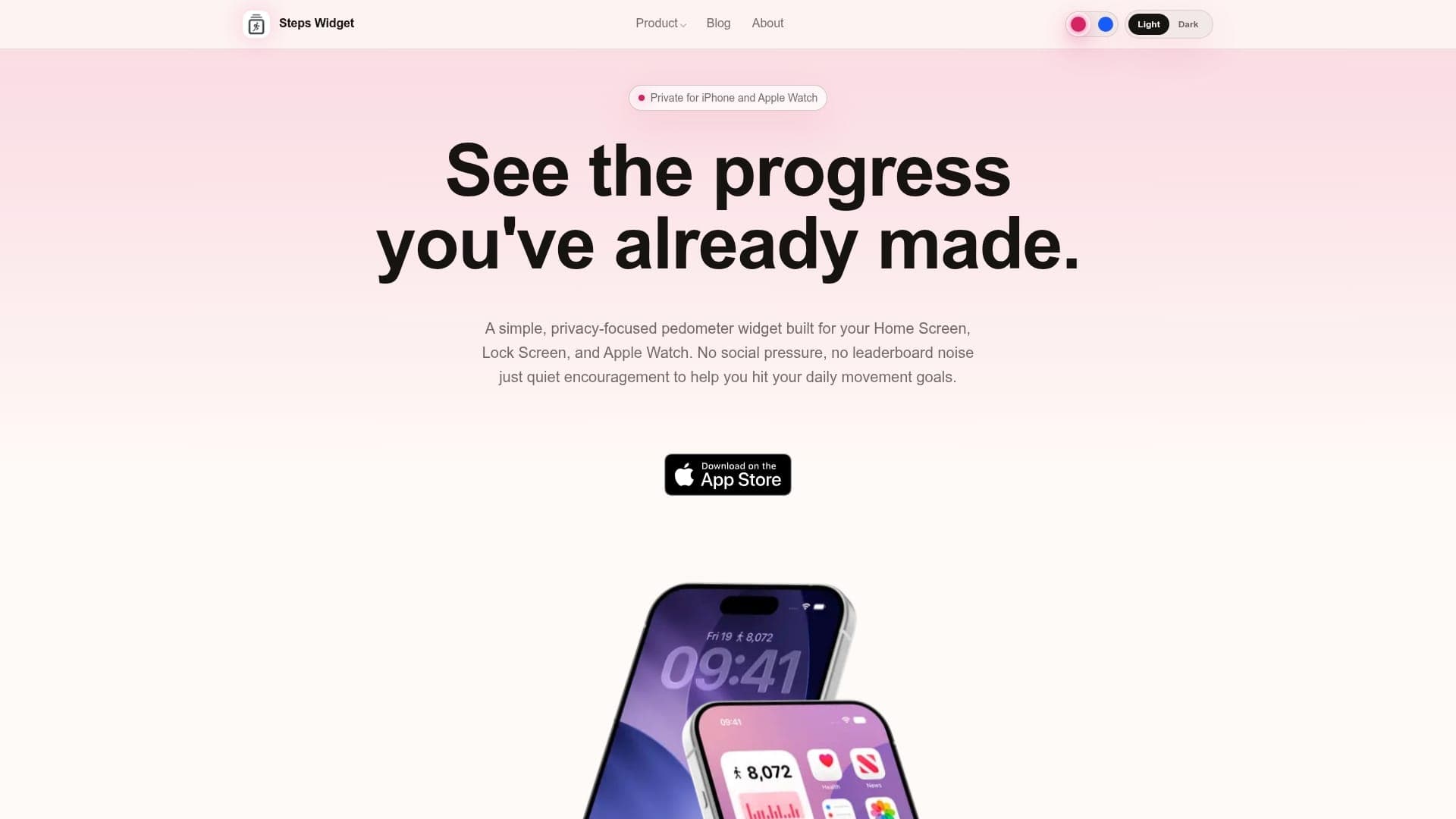
The good news is that you never have to open it. Your iPhone is counting your steps all day whether or not you look, and that number can be shown almost anywhere: on your Lock Screen, on your Home Screen, on your watch, on your Mac, or just by asking out loud.
This guide walks through every option, easiest first. If you are new to all of this, skip to which one should you pick and set up exactly one.
Quick Answer: The Fastest Ways to Check Your Steps
- Ask Siri. No setup at all. "Hey Siri, get my Steps Widget."
- Put a widget on your Lock Screen. You see it every time you pick up your phone, without unlocking.
- Put a widget on your Home Screen. Bigger, and it can show a progress ring against your goal.
- Wear an Apple Watch? Add a complication to your watch face and the number is on your wrist.
Any one of these is enough. You do not need all four.
Table of contents
- Why you do not need to open Health
- 1. Just ask Siri
- 2. Your Lock Screen
- 3. Your Home Screen
- 4. StandBy, while your phone charges
- 5. Your Apple Watch face
- 6. Your Mac desktop
- 7. The Action Button and Shortcuts
- Which one should you pick?
- What to expect once it is set up
- Frequently asked questions
- Key takeaways
Why you do not need to open Health
A quick bit of background, because it makes everything else make sense.
Your iPhone counts steps by itself, using a small low-power chip that runs all day. It does this whether or not you ever open an app. Those steps are saved into Apple Health, which is best thought of as a storage cupboard rather than a dashboard — it holds the data, and other things are allowed to display it.
So the Health app is not where your steps are. It is just one way of looking at them, and not a very convenient one. A widget is another way. Siri is another. They are all reading the same number out of the same cupboard.
One practical note before you start: whichever option you choose, the app you use will ask for permission to read your step data from Health the first time. That is normal and expected — it is how iOS works, and you can see and change it later in Health › your profile picture › Apps and Services.
1. Just ask Siri
The lowest-effort option, with literally nothing to set up.
"Hey Siri, get my Steps Widget."
Siri reads out your current count and how it compares to your goal. You can also ask about other periods — yesterday, last week, this month — or ask whether you are on track:
"Hey Siri, will I hit my step goal in Steps Widget?"
That one gives you a projection of where your day is heading, not just where it is now.
One catch worth knowing: say the app's name. If you just say "how many steps have I taken," iOS answers from Apple Health instead. Including "Steps Widget" or "Steps App" in the sentence is what routes the question to the app. More examples are in Siri and Shortcuts.
2. Your Lock Screen
This is the one most people should start with. You look at your Lock Screen dozens of times a day already, and a Lock Screen widget means your step count is there without even unlocking.
- Touch and hold your Lock Screen, then tap Customise.
- Tap Lock Screen.
- Tap the box under the clock.
- Pick a steps widget from the list.
- Tap Done.
These widgets are small, so expect a number and a bit of progress — not a chart. That is the right amount of information for a glance. Full instructions with pictures are in how to show steps on your iPhone Lock Screen.
3. Your Home Screen
A Home Screen widget is bigger, so it can show a progress ring against your daily goal — which is more useful than a bare number, because it answers "am I doing okay today?" rather than just "what is the number?"
- Touch and hold an empty part of your Home Screen until the icons jiggle.
- Tap the + in the corner.
- Search for the app and choose a widget size.
- Tap Add Widget, then Done.
Where you put it matters more than which one you pick. Top-left of your first page, or the row just above the dock, are the two spots your eye naturally lands on. A widget on a third page you rarely swipe to is a widget you will stop noticing — more on that in why you stopped noticing your step widget.
4. StandBy, while your phone charges
If you charge your phone on a stand beside your bed or on your desk, iOS turns it into a small always-on display called StandBy. You can put your steps on it.
Turn your charging iPhone on its side while it is locked, and swipe to the widget panel. StandBy is a nice extra rather than a first choice — it only appears while charging — but it is good for an evening glance when there is still time to take a walk. See steps in StandBy mode.
5. Your Apple Watch face
If you wear an Apple Watch, this is the most convenient option of all, because checking takes no phone at all — just turning your wrist.
- Touch and hold your watch face, then tap Edit.
- Swipe to Complications.
- Tap a slot and choose a steps app.
- Press the Digital Crown, then tap the face to save.
A round slot can show a progress ring; a wide rectangular slot can show a small chart of your day. Step-by-step details are in how to show steps on your Apple Watch face.
6. Your Mac desktop
Useful if you sit at a desk all day, because the Mac is the screen you are already staring at.
There is no separate Mac app to install — macOS borrows the widget from your iPhone:
- Sign both devices into the same Apple Account, with your iPhone nearby.
- On the Mac, open System Settings › Desktop & Dock and scroll to Widgets.
- Turn on Use iPhone widgets.
- Right-click the desktop, choose Edit Widgets, find the app, and drag one out.
7. The Action Button and Shortcuts
Worth a mention once you are comfortable, and skippable if you are not.
Newer iPhones have an Action Button on the side that can run anything you assign to it. Assign a steps action and you get your count from a single press, with no screen to find or app to open.
The Shortcuts app can also do things like speak your projected total at 4 PM each day, or text you a weekly summary on Monday morning. These are nice extras, not something a beginner needs on day one.
Which one should you pick?
If you are setting up one thing and want to stop reading, use this:
| Your situation | Pick this |
|---|---|
| You check your phone constantly | Lock Screen widget — you will see it without trying |
| You want to know if you are on track, not just the number | Home Screen widget with a progress ring |
| You wear an Apple Watch | A watch face complication — no phone needed |
| You work at a desk all day | Mac desktop widget, plus one of the above |
| You just want the number occasionally | Ask Siri — nothing to set up |
Honestly: pick one, live with it for a week, and add a second only if you find yourself wanting it. Four widgets in four places is not four times as useful.
What to expect once it is set up
A few things are worth knowing in advance, so they do not look like problems:
- The number can be a few minutes behind. That is normal. Apple Health passes updates to apps roughly once an hour, and iOS redraws widgets on its own schedule to save battery. Your steps are being recorded either way. The full explanation is in how your iPhone and Apple Watch count and sync steps.
- Your phone only counts steps it is with you for. Walking around the house with your phone on the kitchen table does not count. This is the usual reason a day looks lower than it felt.
- There is nothing to log. You do not start or stop anything, and you do not press a button when you go for a walk. It is already counting.
- It does not need your location. Step counting is motion, not GPS.
- You do not need to keep the app open. In fact you barely need to open it at all — that is the point of a widget.
If your widget shows zero all day, the most common cause is a single system switch: Settings › Privacy & Security › Motion & Fitness › Fitness Tracking. If that is off, nothing on the phone counts steps. The rest of the checklist is in why is my iPhone not counting steps.
Frequently asked questions
Can I see my steps without opening any app? Yes. A Lock Screen or Home Screen widget shows your count without opening anything, and Siri will tell you if you ask. Both read the same data the Health app does.
Does Apple Health have its own widget? Health offers limited widgets, and they are not focused on a daily step count with goal progress. Most people use a dedicated step widget instead, which reads the same Health data and shows it in a more glanceable form.
Do I need an Apple Watch? No. Your iPhone counts steps on its own. A Watch adds the walks you take without your phone, and lets you check your count by turning your wrist, but nothing requires one.
Will a step widget drain my battery? No, not noticeably. The chip that counts steps is already running, no GPS is involved, and widgets refresh on a limited schedule set by iOS. See will a steps widget drain your battery.
Is my step data private? It stays on your device. Steps Widget reads Apple Health on your iPhone, has no account to sign up for, and sends nothing to a server. See privacy and sync.
Why does my widget show a different number than the Health app? Usually because the widget is a few minutes behind — iOS redraws widgets from a limited daily budget rather than live. It catches up on its own.
Do I have to pay for this? A working widget on every surface, your daily goal, and goal reminders are free in Steps Widget. Only extra colours and styles are paid.
Key takeaways
| Question | The short answer |
|---|---|
| Do I need to open Health? | No — it is storage, not the only way to see your steps |
| What is the easiest option? | Asking Siri, which needs no setup at all |
| What is the best option for most people? | A Lock Screen or Home Screen widget |
| Where should I put a widget? | Somewhere you already look — first page, top-left, or above the dock |
| Why is the number slightly behind? | Normal — Health updates apps hourly and iOS redraws widgets on a budget |
| How many should I set up? | One. Add more only if you miss them |
Related reading: how to show steps on your iPhone Lock Screen for the most-used surface, the best step counter widget for iPhone if you want to compare apps, and how to set a realistic daily step goal once the number is somewhere you can see it.
Recommended posts
Try Steps Widget
Keep your daily steps visible on iPhone, Lock Screen, Home Screen, and Apple Watch with a private Apple Health step counter widget.